

How to extend phone battery life begins with understanding what drains it most: your screen brightness, apps running in the background, and constant connections like Wi-Fi and GPS are the primary reasons. Smartphones today use a lot of power, but you can make the time between charges much longer by making smart changes to settings and habits. This guide gives you clear, useful steps to take right away to save money and extend your phone’s battery life in the long run, no matter what kind of phone you have.
How to extend phone battery life with immediate adjustments?
If you focus on the display, which uses the most power on your phone, you should see a big difference in how long your battery lasts today. Because it is so bright and colorful, the screen uses the most battery power.
- Lower Screen Brightness: Lowering the screen brightness is the best quick fix. Lower the brightness to about half or to a level that is easy to see. To save automatically, turn on Auto-Brightness (iOS) or Adaptive Brightness (Android). This lets your phone use a light sensor to adjust the screen brightness based on the room’s lighting.
- Shorten Screen Timeout: Make your screen turn off more quickly when you stop using it. Changing the timeout from 2 minutes to 30 seconds prevents power from being wasted all day.
- Enable Dark Mode: Dark mode saves battery life on phones with OLED screens (most new ones) because it turns off black pixels completely. To save battery life, change your display theme to dark.
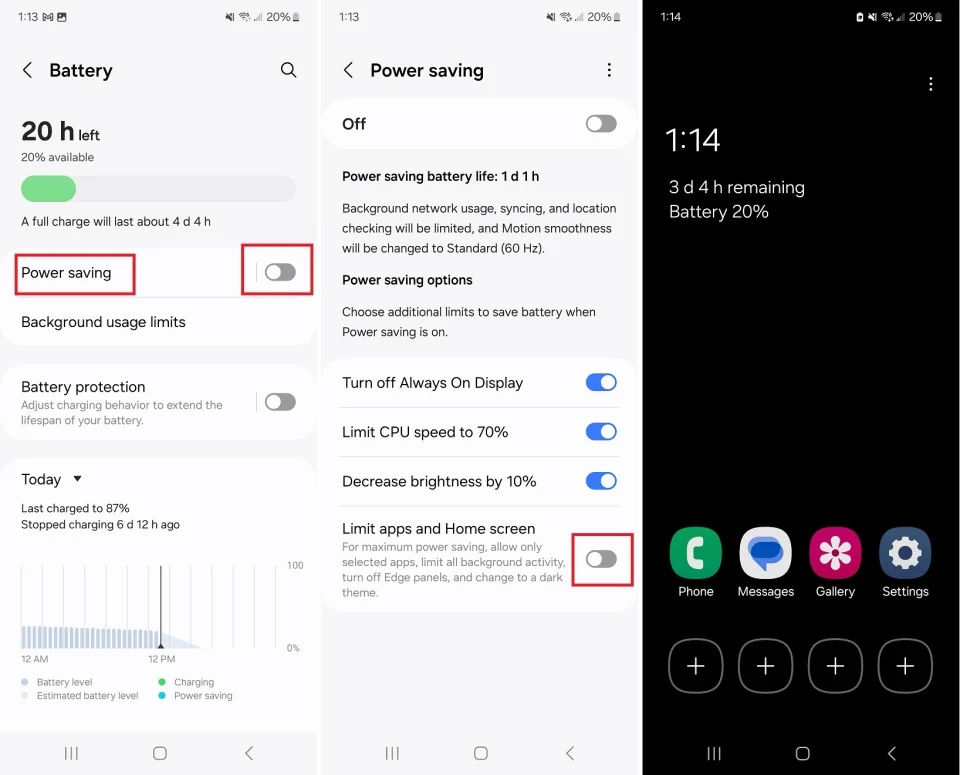
- Use Power Saver Mode Early: Don’t wait for a 20% warning; turn it on right away. At the start of a long day, turn on Low Power Mode on your iPhone or Battery Saver on your Android. It saves energy by lowering the amount of activity and visual effects in the background.
How to extend phone battery life by optimizing settings?
Deeper settings control how apps and services work, and they can often use up power without you knowing it. To learn how to extend your phone’s battery life, you need to take control.
Tame Background App Activity
Apps often refresh in the background to get new emails, updates from social media, or location data. Such activity is a battery killer that makes no noise.
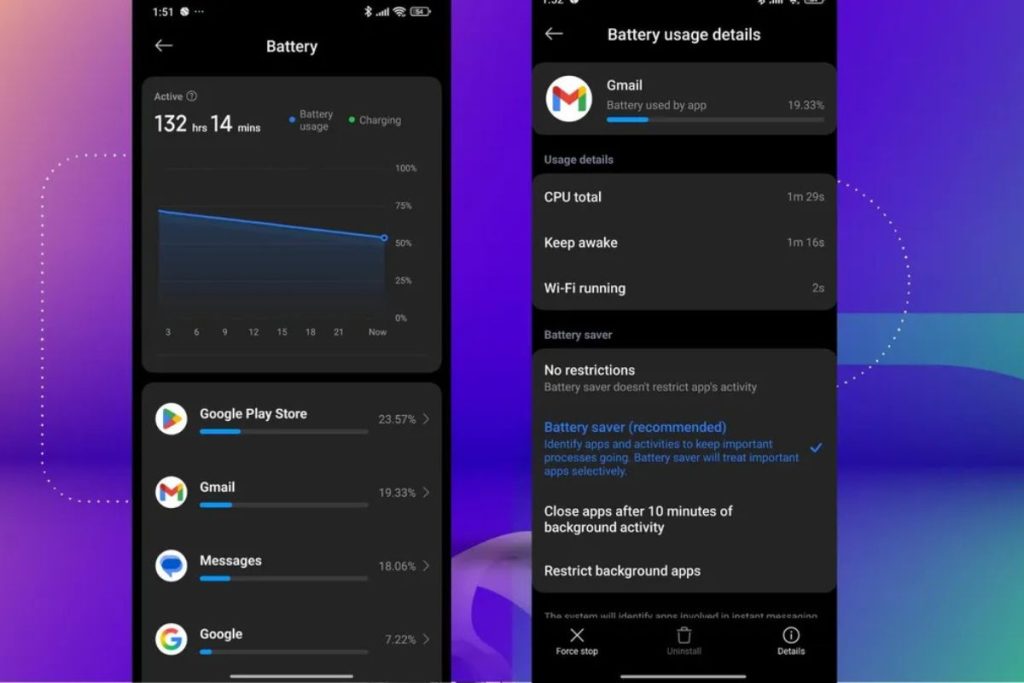
- To find the biggest battery drainers on both iPhone and Android, go to your settings and look for Battery Usage.
- Limit Background App Refresh for apps that don’t need to be updated in real time, like games and social media.
- To use location services for things like shopping or checking the weather, change app permissions from “Always” to “While Using the App.”
Manage Connectivity Features
Wireless radios that are looking for a signal use a lot of power.
- When you’re not using Bluetooth, Wi-Fi, or GPS (Location Services), turn them off. The quickest way to do this is through the quick settings panel.
- Your phone works harder to find a network in places with weak cellular signals, which drains the battery. In these cases, turning on Airplane Mode can stop the drain.
Refine Notifications and Display
Each notification that lights up your screen uses a small burst of energy.
- Disable push notifications for non-essential apps, such as games or shopping platforms, in your Notifications settings.
- Consider turning off the Always-On Display feature if your phone has it, as it keeps elements of the screen illuminated constantly.
How to extend phone battery life with smart charging habits?
How to extend phone battery life isn’t just about daily use—it’s also about preserving your battery’s capacity over the years. Lithium-ion batteries wear out when they are stressed, mostly from heat and being kept at very high charge levels.
- Follow the 40-80 Rule: To get the most life out of your battery, keep it between 40% and 80% charged. Not going through full 0% to 100% cycles lessens stress. You don’t have to be perfect; just not charging to 100% all the time will help.
- Use Optimized Charging Features: Both iOS and Android come with built-in protections. On iPhones, turn on Optimized Battery Charging. On Pixel phones, turn on Adaptive Charging. These features learn your routine (like charging overnight) and wait to finish charging until you need it, even if the battery is more than 80% full.
- Avoid Extreme Heat: Heat is the worst thing for a battery. Don’t leave your phone in a hot car or in the sun for long periods. If your device starts to get hot while charging, remove the thick cases.
- Use Official Chargers: For your safety and the health of your battery, use the power adapter that came with your phone or a certified one. Using the wrong charger can make charging take longer or cause excessive heat.
Advanced tips on how to extend phone battery life and final words
These advanced steps can help if you’ve already tried the steps above and your battery is still draining quickly.
- Update Your Software: Always install the latest OS and app updates. Manufacturers regularly release updates that include battery performance optimizations and bug fixes.
- Check for Rogue Apps: Go to Settings > Battery to see a detailed breakdown of app usage. An app with high “Background Activity” might be malfunctioning. Try force-closing it, updating it, or reinstalling it.
- Perform a Regular Restart: A simple weekly restart can clear out minor software glitches that may cause abnormal battery drain.
- Know When to Replace: All batteries degrade over time. If your phone no longer holds a useful charge despite all optimizations, a battery replacement from an authorized service provider is a cost-effective way to restore its longevity.
By integrating these practical steps into your routine, you move beyond wondering how to extend phone battery life and start enjoying a device that reliably powers through your day.
Start with the quick wins, then adopt smarter charging habits to keep your battery healthy for years to come. For more device-specific guidance, consult official resources like Apple’s battery performance page or Google’s Android battery help guide.