
With iOS 26, Apple added the Liquid Glass design, which made menus, buttons, and notifications look like they were made of glass. You’re not the only one who thinks this new look is a little too clear.
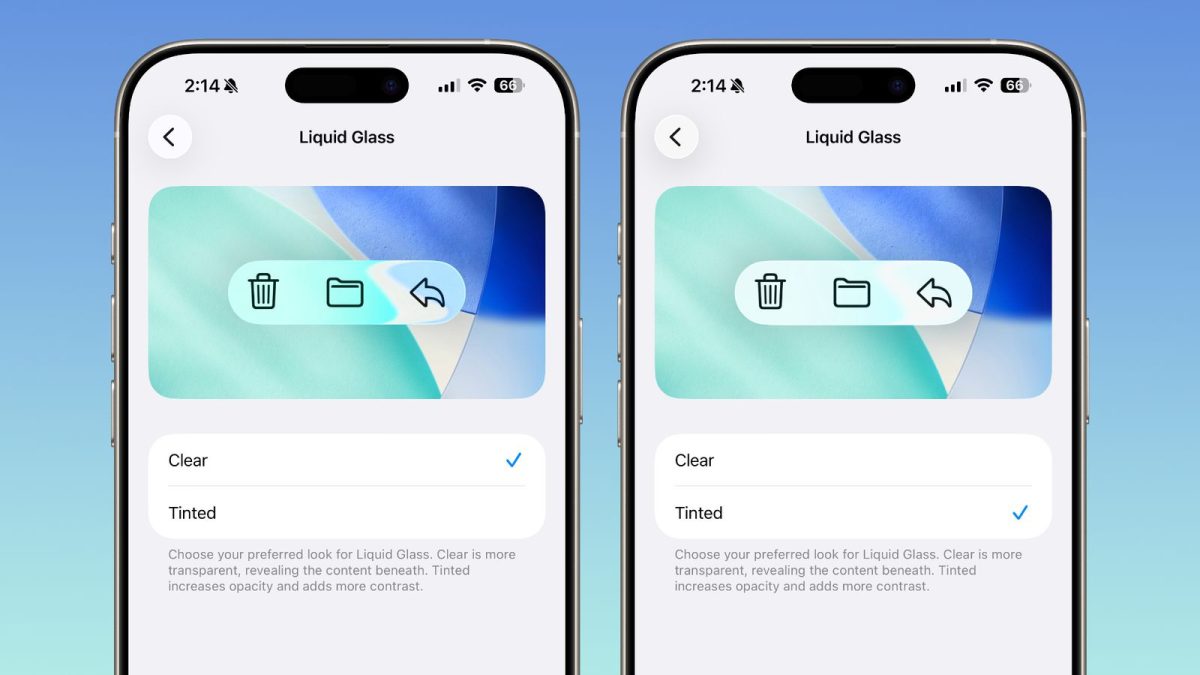
The good news is that Apple heard what people said and added a simple switch to control it. With the new Liquid Glass toggle in iOS 26.1, you can choose between the default clear look and a tinted, less clear look.
This is the easiest way to change the transparency of your whole device right away.
How to use the Liquid Glass Toggle?
Follow these steps to change the look of Liquid Glass. This one change affects a lot of things in your operating system, like notifications and the interfaces of apps.

- Open the Settings app on your iPhone.
- Scroll down and tap on Display & Brightness.
- Here, you will find the setting for Liquid Glass. Tap on it.
- You will see two choices: Clear and Tinted. Select Tinted to make the translucent elements more solid, improving contrast and opacity .
- Exit Settings. The change takes effect immediately. No restart is needed.
Fine-Tune your display further
If adjusting the Liquid Glass toggle isn’t quite enough, your iPhone has other powerful tools to improve readability.
Head to Settings > Accessibility > Display & Text Size. Here, you can turn on “Reduce Transparency” to make backgrounds even more solid . For better definition around buttons and text, enable “Increase Contrast” . You can also switch on “Bold Text” to make all the writing on your screen heavier and easier to see .
With the new Liquid Glass toggle in iOS 26.1, you can change the look of your phone directly. You can now customize the look of your iPhone to suit your taste, whether you like the modern transparent look or the solid feel of the tinted mode.