


The latest browser update brings Google AI mode directly into the Chrome address bar with a fully expanded prompt box. Google AI mode is an advanced search and browsing assistant that leverages generative content.
This feature turns the standard web browser into a highly interactive research tool that processes natural language directly from the Omnibox. Users can now access these expanded capabilities without navigating away from their current web page.
How does the upgraded Google AI Mode work in Chrome?
Previously, the integration for Google AI mode in Chrome featured a simple button on the right side of the address bar. This basic shortcut sent typed text straight to the assistant.

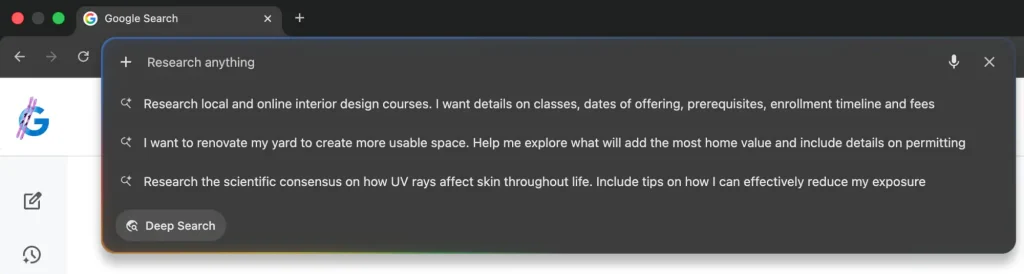
The recent desktop version 145 update replaces this design with a dedicated “plus” menu on the left side, matching the layout found on the dedicated artificial intelligence search portal. According to 9to5Google, this visual change expands the address bar into a larger prompt box surrounded by a distinct four-color glow.
When you click on the new menu, the prompt box shows useful suggestions like “Ask anything,” “Describe your image,” and “Research anything.” The new Google AI mode also lets users go straight to advanced settings.
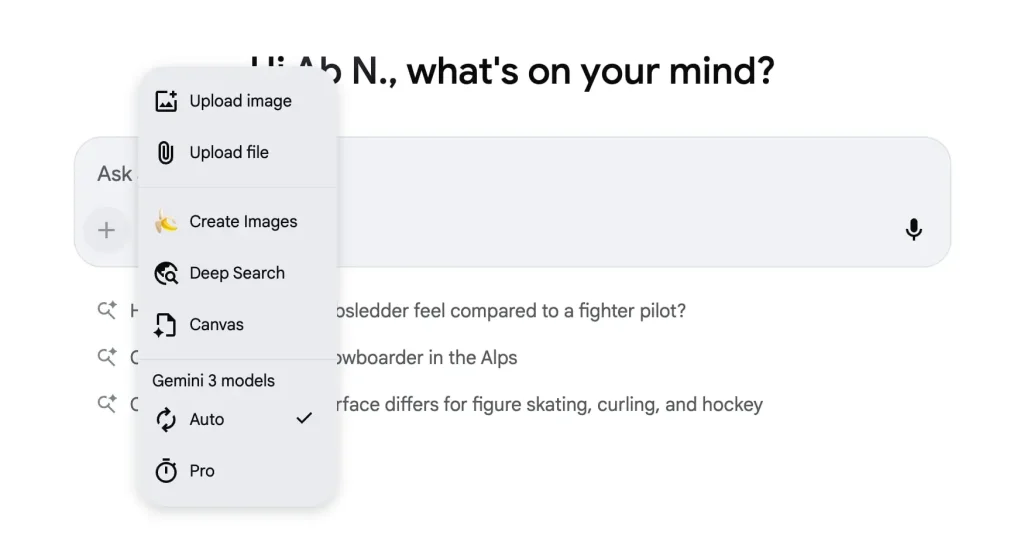
You can choose from different operational tiers, like the Gemini 3 Auto and Pro models, to meet the needs of your research. There are quick options on the menu to upload files, add images, and start Deep Search to get full answers. Along with the Nano Banana image generation features, the system has also recently added “Canvas” to its growing list of creative tools.
Top benefits of using Google AI Mode in your browser
The best part of this update is that Google AI mode works with the pages you are currently looking at. The “Most recent tabs” option is a fantastic new feature in the menu. This lets the browser send the text and context of the web pages you have open straight to the assistant.
For users, these are the best things about the new Google AI mode:
- Instant Summaries: If you want to quickly get the gist of a long article, just tell the assistant to summarize the page you’re on right now.
- Contextual Research: You can ask your open tabs hard, multi-part questions without having to switch windows or copy and paste text.
- Integrated File Support: You can easily upload files or pictures from your computer through the address bar to see data or write descriptions.
- Direct Creative Tools: Use the image generators and workspace tools that come with the program to make images right from the tab you’re on.
You can change how your browser looks any way you want. To turn off the feature, right-click on the address bar and uncheck the box next to “Always Show Google AI Mode Shortcuts.”
Q: What is Google AI mode for?
In the Chrome browser, you may use Google AI mode as a smart assistant. Its powerful language models enable individuals to get information, summarize open web pages, answer tough inquiries, and come up with fresh content ideas.
Q: What do I do with the box that pops up in Chrome?
Click the + sign on the left to add something to the Chrome address bar. In this area, you can ask questions, submit files, share recent tabs, or pick options like Deep Search.
Q: Do you know how to stop the AI from operating in the address bar?
Yes, it’s easy to turn off the shortcut. To bring the browser back to how it typically looks, right-click on the address bar and uncheck the box that says “Always Show Google AI Mode Shortcuts.”
Conclusion: With the new Google AI mode, the Chrome address bar is a powerful, all-in-one area to perform research and get things done.