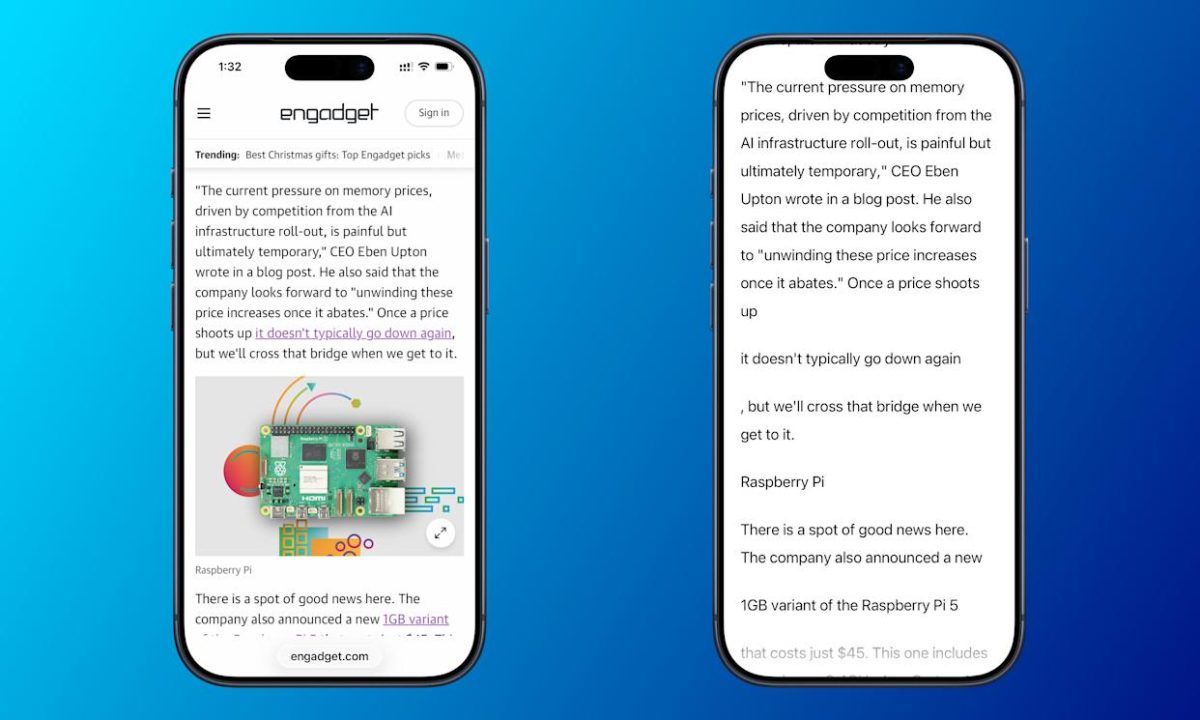

Reading can be hard when the screen is small and messy. Apple has made a wonderful tool to help people who have trouble seeing, focusing, or who get tired eyes. The Accessibility Reader makes all the text on the screen easy to read and lets you change how it looks.
This feature does more than zoom in. It gets rid of ads and buttons that get in the way, so you can only read the words. You can change the way the text looks to fit your needs, or listen to articles read aloud. The Accessibility Reader is a useful tool for making reading easier. It works on the iPhone, iPad, Mac, and Apple Vision Pro.
How to use the Accessibility Reader on your Apple devices?
It’s easy to get started with the Accessibility Reader. The first thing you need to do is turn it on in your device’s settings. Once it’s turned on, you can launch it from almost any app right away to clean up text and start reading or listening.
Enabling and Launching the Tool
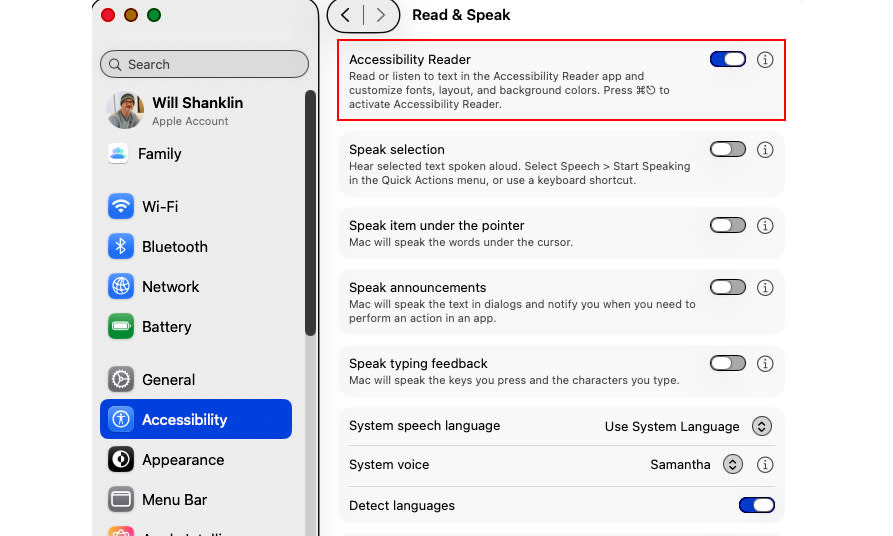
You only need to turn on the Accessibility Reader once. Navigate to Settings > Accessibility > Read & Speak and toggle it on. Thereafter, launching it is quick:
- On iPhone & iPad: Triple-click the side or top button (or the Home button on older models) to open the Accessibility Shortcut, then select it. You can also add a dedicated tile to your Control Center for one-tap access.
- On Mac: Use the keyboard shortcut Command-Esc by default. You can customize this shortcut or access the tool through the Accessibility Shortcuts menu.
Listening to content read aloud
The Accessibility Reader includes a high-quality text-to-speech function. When you open a text file with the tool, tap or click the play button to start listening. You have full control over the playback:
- Use the pause, rewind, and fast-forward buttons to manage the flow.
- Adjust the speaking rate by tapping the speed button (1x).
- For hands-free listening, enable Autoplay in the settings so narration begins automatically.
Customizing your reading view
This section is where the Accessibility Reader truly shines. You can mold the reading environment to reduce eye strain and improve comprehension. After opening the tool, tap the AA icon to open the customization menu. Key adjustments include:
- Visual Themes: Choose preset color combos like Light, Dark, or Sepia.
- Text & Background: Pick custom colors for text and its background for optimal contrast.
- Font and Spacing: Change the font style and size, and adjust line, word, or character spacing.
- Layout: Control the width of the readable content to keep lines of text at a comfortable length.
The Accessibility Reader is more than just a small setting; it’s a way to make the digital world easier to use and fit your needs. You can choose how text is displayed and spoken, letting you read and listen in the way that works best for you. If you need to read a long article, want high-contrast colors, or want to see something without distractions, you should check out this tool in your device’s Accessibility settings.