

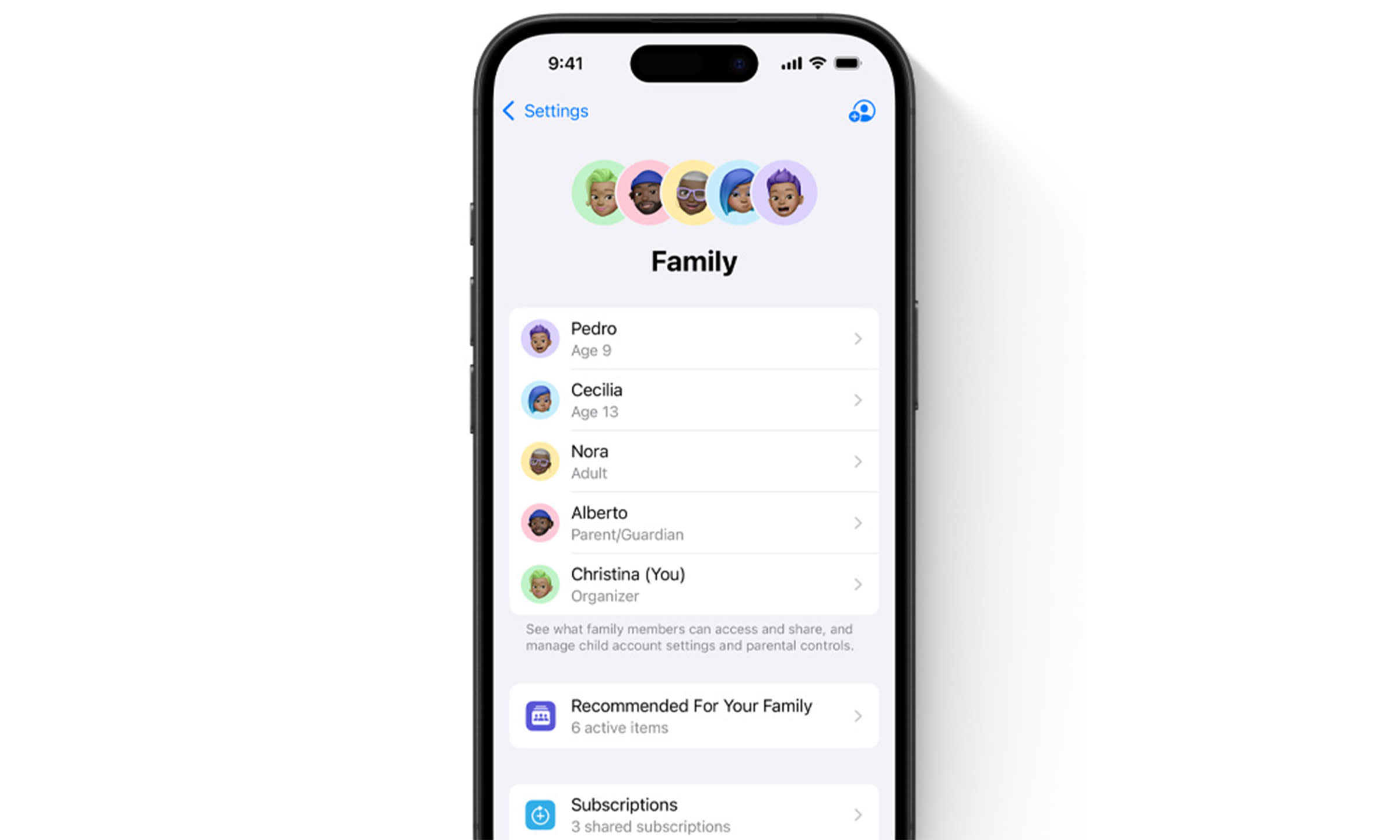
The Family Sharing group helps bring your family closer together, even when everyone is busy with their own activities. It lets up to six family members share subscriptions to services like Apple Music and iCloud+ without having to share their personal accounts. Parents get powerful tools to control how much their kids spend and use their devices.
Setting up your Family Sharing group is quick and simple, and it makes a big difference. Starting is effortless. One adult is responsible for inviting other adults to the family. Everyone has their own Apple Account, so their photos and files stay private. This guide will show you how to add both adults and children to your Family Sharing group.
How to add members to your Family Sharing Group
Inviting adults and older family members

It’s easy to add someone who already has an Apple account. You can send an invitation on your iPhone or Mac as a family organizer. You can finish the process together, or the person can accept it on their own device.
This is how to send an invitation from your iPhone:
- Open the Settings app.
- Tap your name at the top, then select Family.
- Tap the add button in the upper-right corner.
- Choose Invite Others.
You can send the invitation by AirDrop, Messages, or Mail. If the person is with you, choose “Invite in Person,” then have them enter their Apple ID and password directly on your device.
Your family member will see the invitation at the top of their Settings app after you send it. You can see the invitation status in your family settings and resend it if needed. Everyone in a Family Sharing group must live in the same country, and each person can only be in one family group at a time.
Creating a child account for your Family Sharing Group
The process is different for kids under 13 because they can’t make their own Apple Account. You can set up a managed account for them if you are the family organizer or a parent or guardian in the Family Sharing group. This account comes with built-in parental controls.
To make this account on your iPhone:
- Go to Settings > Family.
- Tap the add button.
- Tap Create Child Account, then tap Continue.
- Enter your child’s name and accurate birth date. This information is used to set age-appropriate content restrictions.
You can turn on important safety features, such as Ask to Buy, during setup. This feature requires your permission before any downloads or purchases can be made. You can also use Screen Time to limit web content and control communication. You don’t need to make a new Apple Account for your child if they already have one.
To join your Family Sharing group, just tap “Invite Others” and have them enter their current account information on your device. You can’t add that account if it’s already in another family group. The previous organizer has to remove it first. Once you’ve established your Family Sharing group, please explore the features that enhance its usefulness.
When Purchase Sharing is on, the family organizer pays for many of the apps, music, and other media the group buys. You can share locations and help find a family member’s missing device with the Find My app. The Screen Time settings give parents a lot of control. You can check your child’s activity reports, set app limits, and change their device’s privacy settings right from your iPhone. Everyone can use the Family Sharing group safely and easily.